
Converting a PDF From RGB to CMYK
If you have designed the inside of your notebook and have a ready-to-print PDF you need to ensure all of the contents inside it are CMYK colour profile and contain no RGB elements. By ensuring all elements of your print file are CMYK you are limiting any colour shifts while printing as RGB values are much brighter and designed for screen viewing not print.
Please note that images can become pixelated during RGB to CMYK conversion so pay extra attention to the images that will be affected. To avoid any pixelation of images you should use Adobe Photoshop to greyscale your images and place those into the file before running the RGB to CMYK conversion.
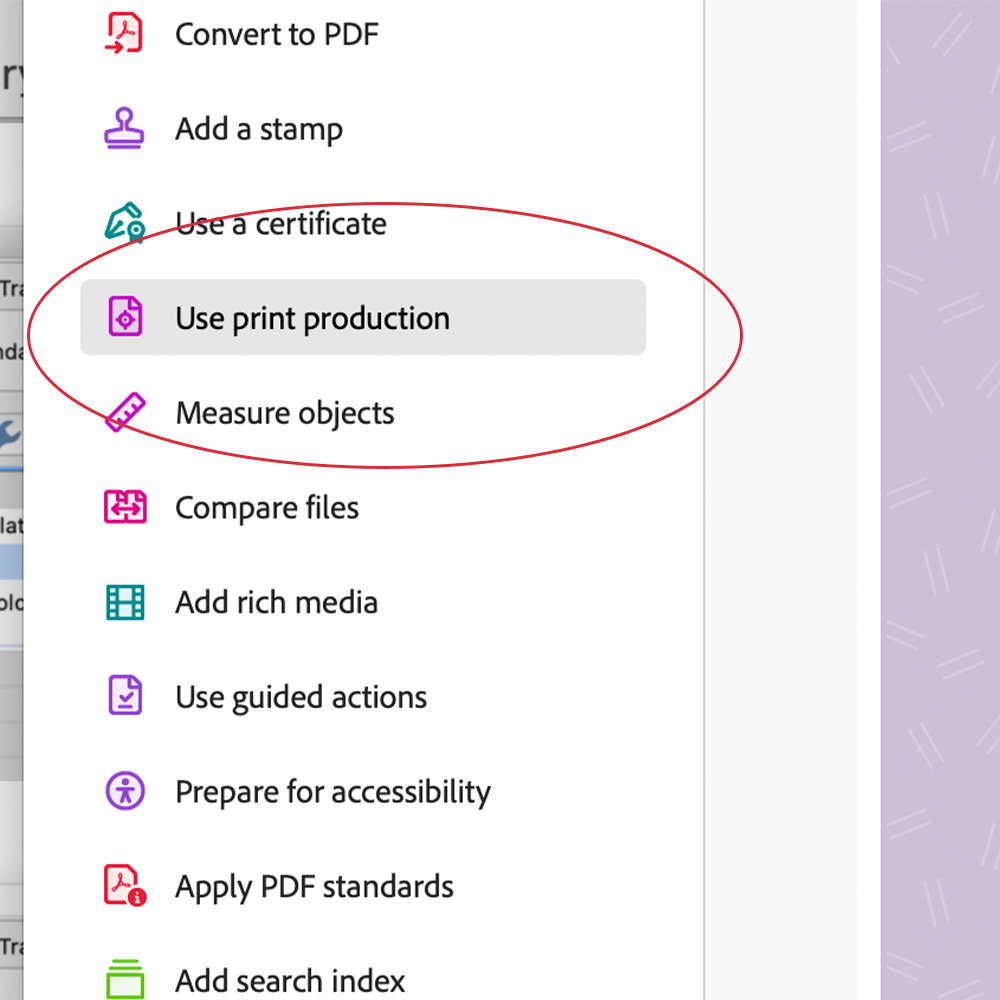
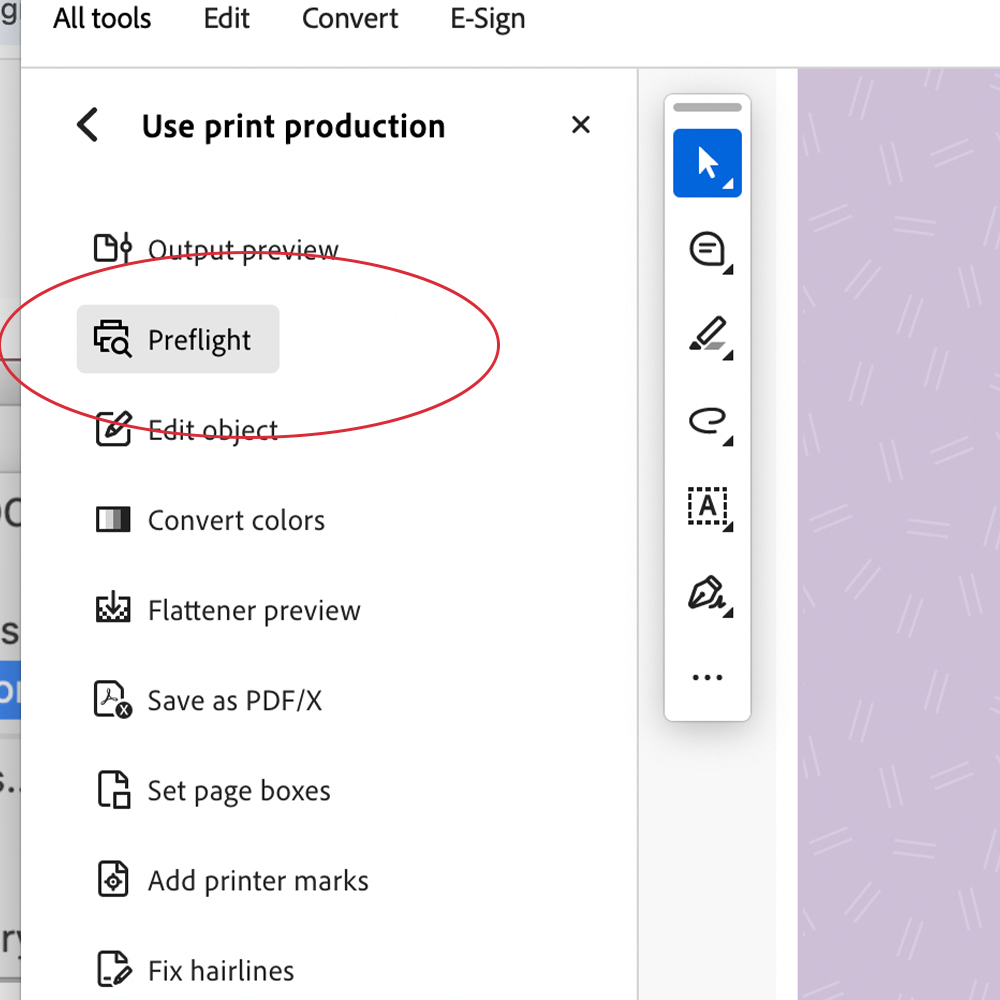
Top Tip: Use acrobat to check your file for random or unexpected RGB elements by creating a copy of your file and opening it in Adobe Acrobat. In the tools section (left side) select ‘Use Print Production’ > Convert Colours.
- In the ‘Matching Criteria’ select the Colour Type as ‘Any RGB’.
- In’ Conversion Attributes’ select the Conversion Profile as ‘Dot Grain 25%’
- Press OK.
You now have an example file which will show all RGB elements in greyscale, this will make it easier to identify which elements will be affected during the RGB to CMYK conversion.
Converting your RGB file to CMYK
To convert your file from RGB to CMYK you will need access to Adobe Acrobat. Within Adobe Acrobat you can convert your PDF in just a few easy steps.
How to: Open PDF in Adobe Acrobat and navigate to the tools menu on the left side.
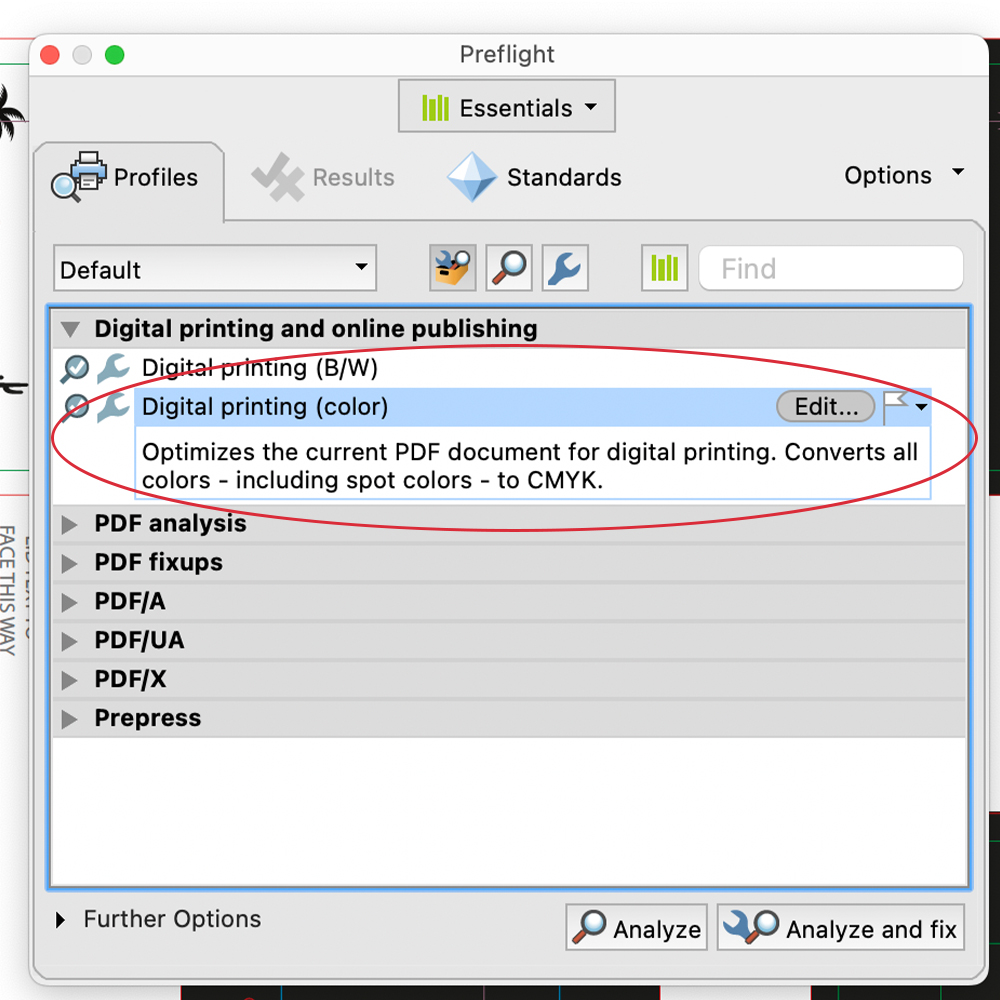
Click Use Print Production > Preflight > Double click on ‘Digital Printing’ > Give your converted file a name > Save
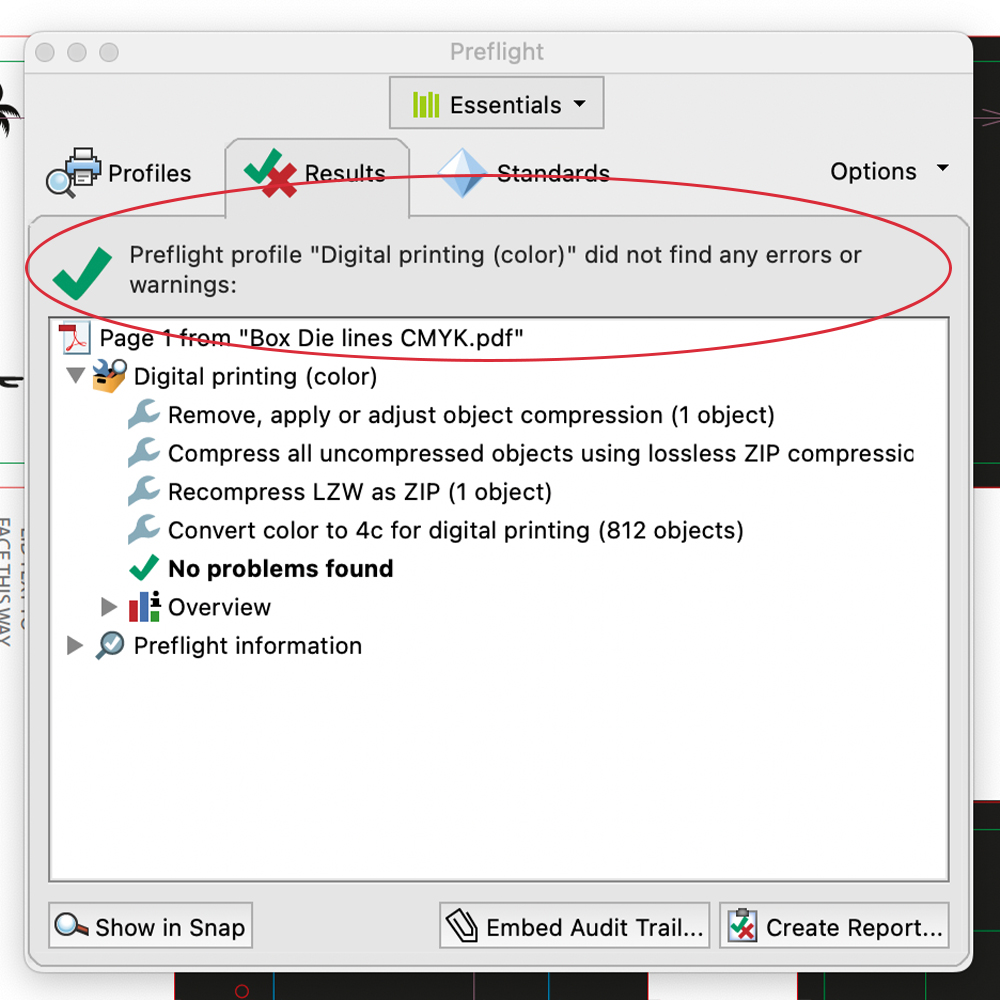
After the conversion is done, the preflight window will confirm all the file elements have been converted and are correct. This will be confirmed with the green tick symbol.