

GCR Greyscaling Your Files
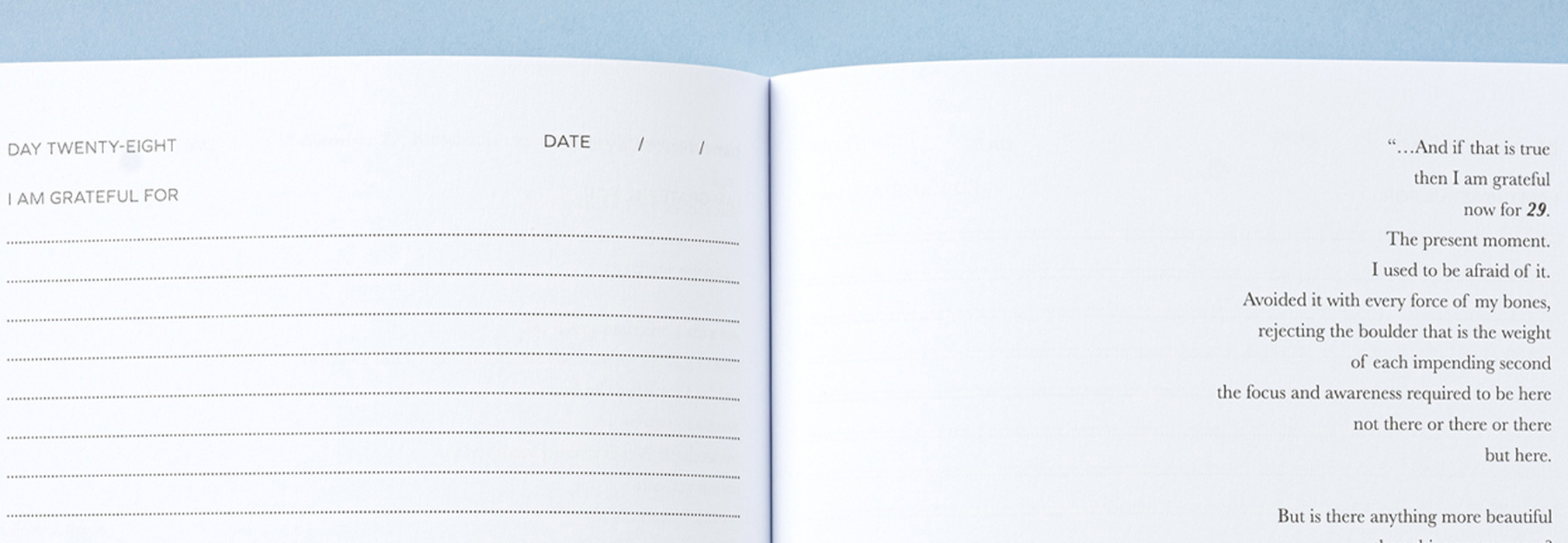
Greyscaling or applying a GCR profile to your print files is important if you want to print these as black and white. When printing in B&W format, the printer uses only a black toner and the white paper to build the images, creating various shades of grey by printing black ink in different opacity levels.
Why should I greyscale my files?
You should GCR (Gray Component Replacement) your print files to replace a portion of the gray tones in an image with black ink, resulting in a more neutral appearance while also improving print stability and color consistency on press, especially for large areas of midtones and grays.
How to do this?
To obtain a GCR (Grey Component Replacement), you will need to create a custom CMYK conversion profile using Adobe Photoshop. Before you do this, you need to ensure your file is exported in greyscale.
Alternatively if you have already designed your journal with colour, you simply need to convert the file to greyscale.
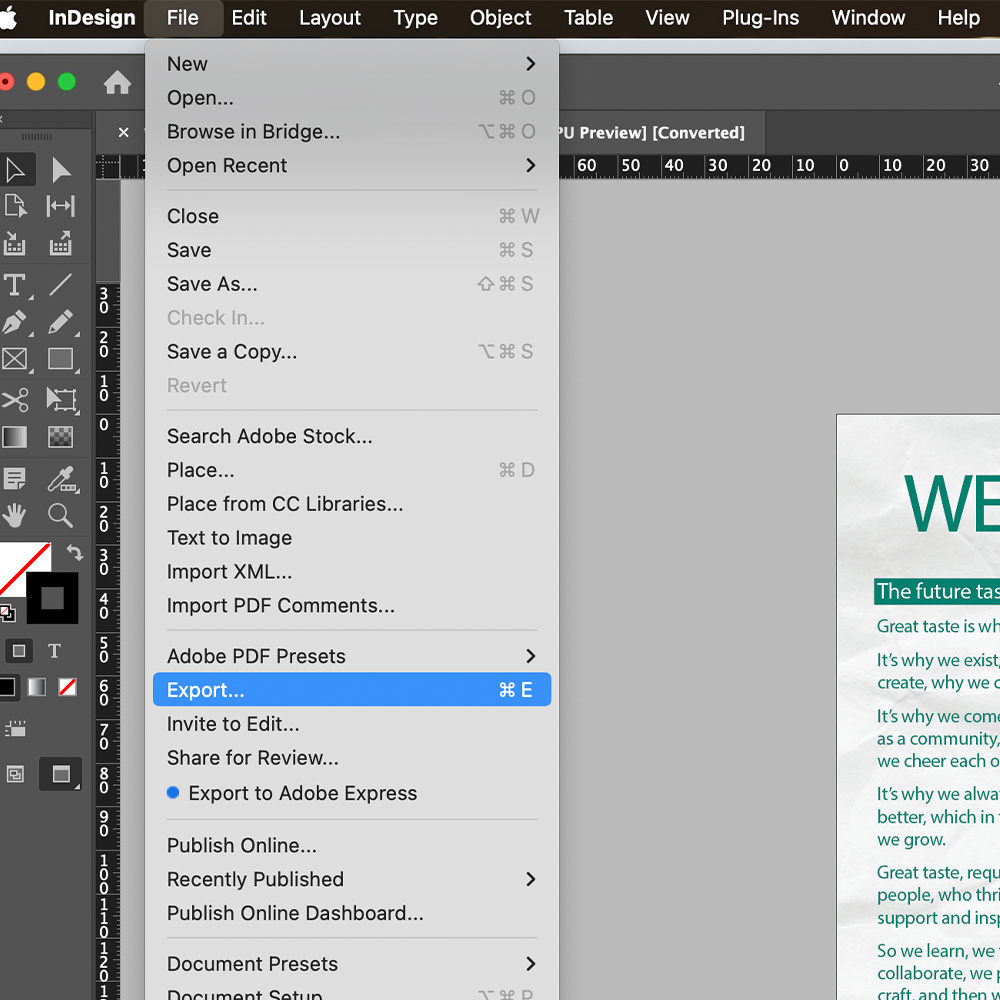
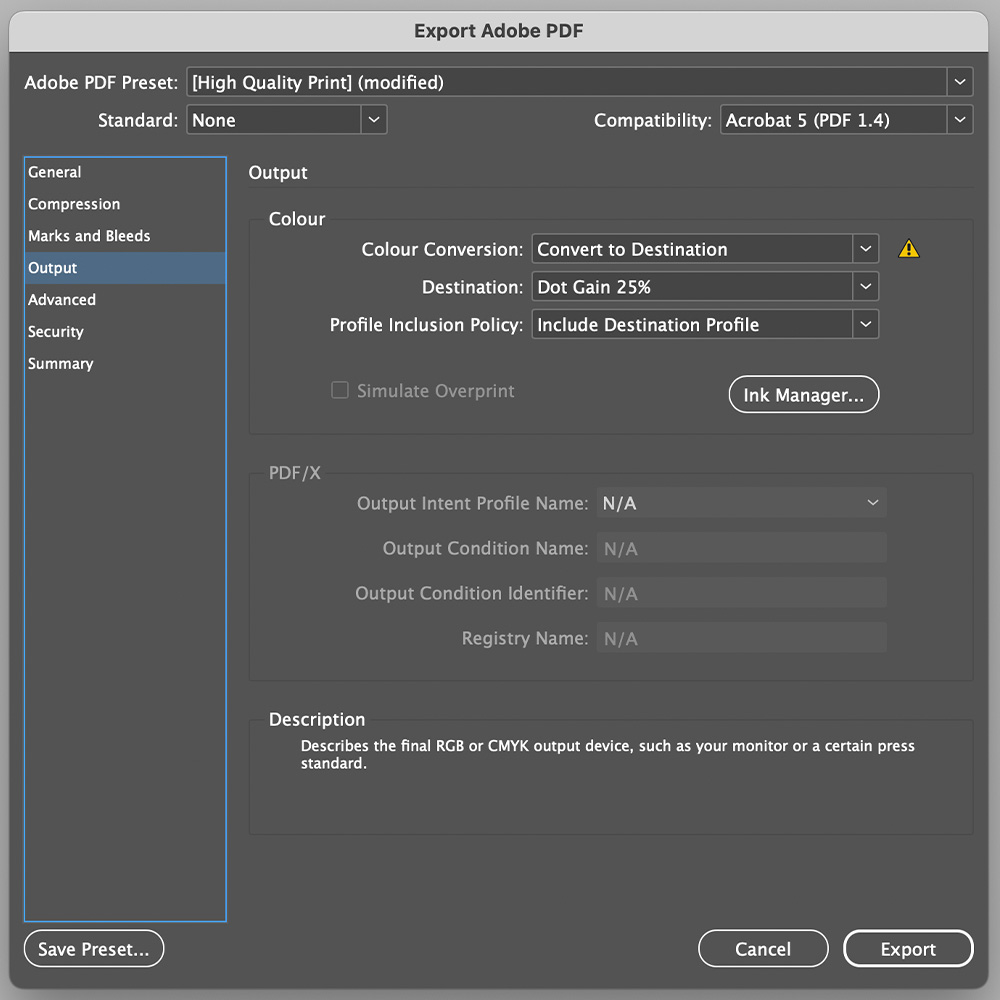
Exporting in greyscale using Adobe InDesign:
File > Export > Adobe PDF (Print) > Save > Output : Colour Conversion = Convert to Destination, Dot Gain = 25% > Save
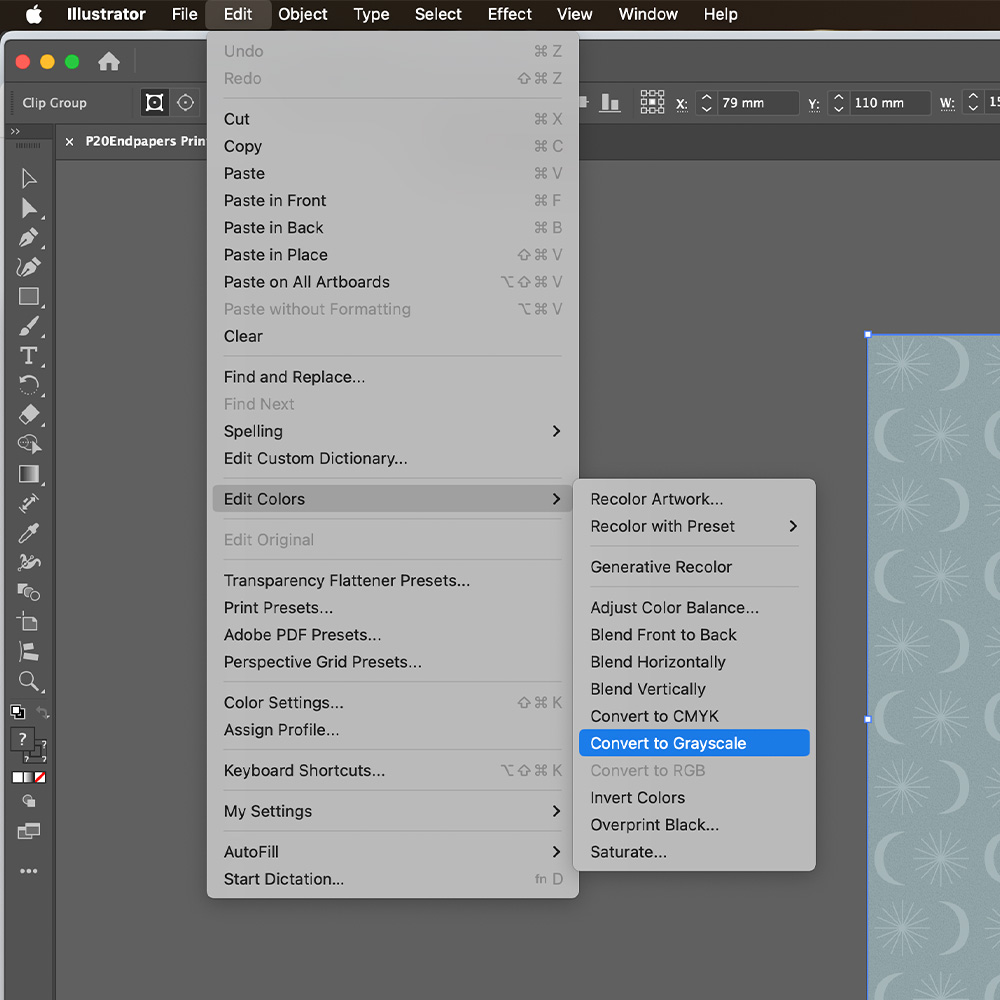
Exporting in greyscale using Adobe Illustrator:
Select all the image and illustration layers and then click Edit > Edit Colours > Convert To Greyscale
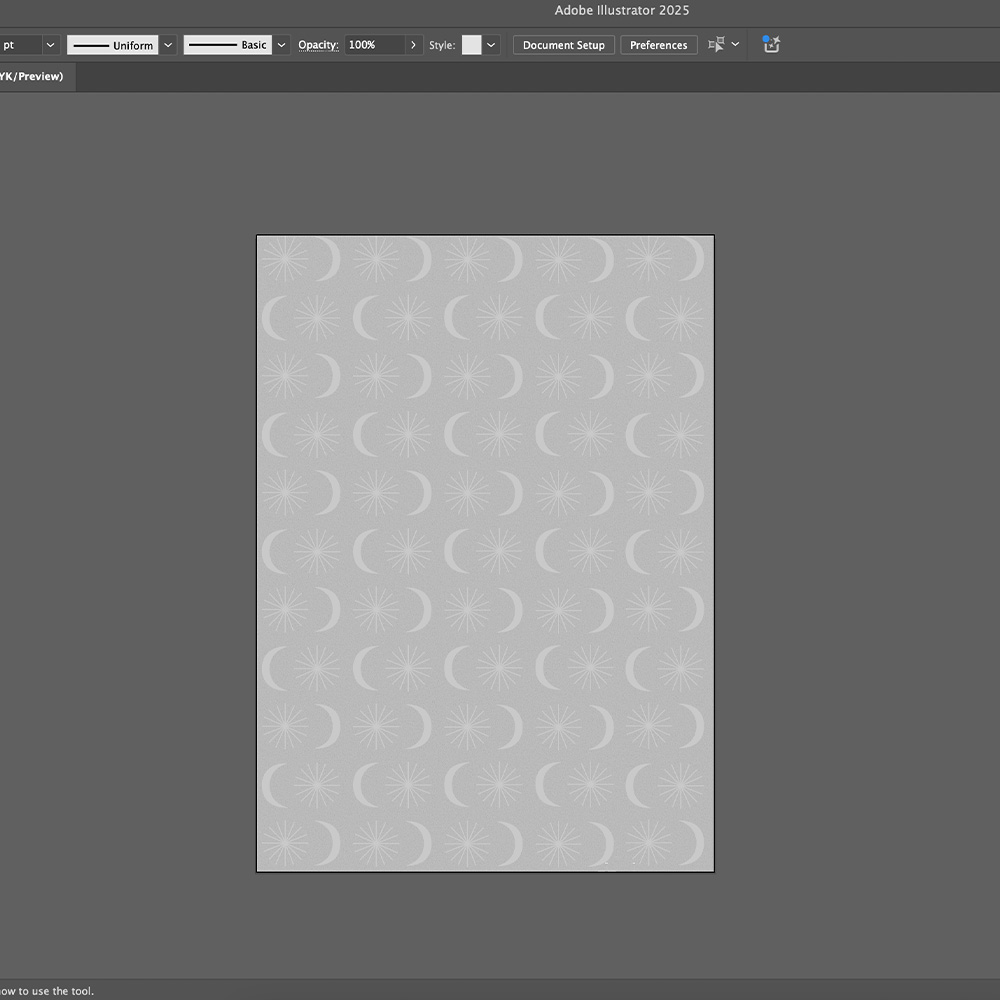
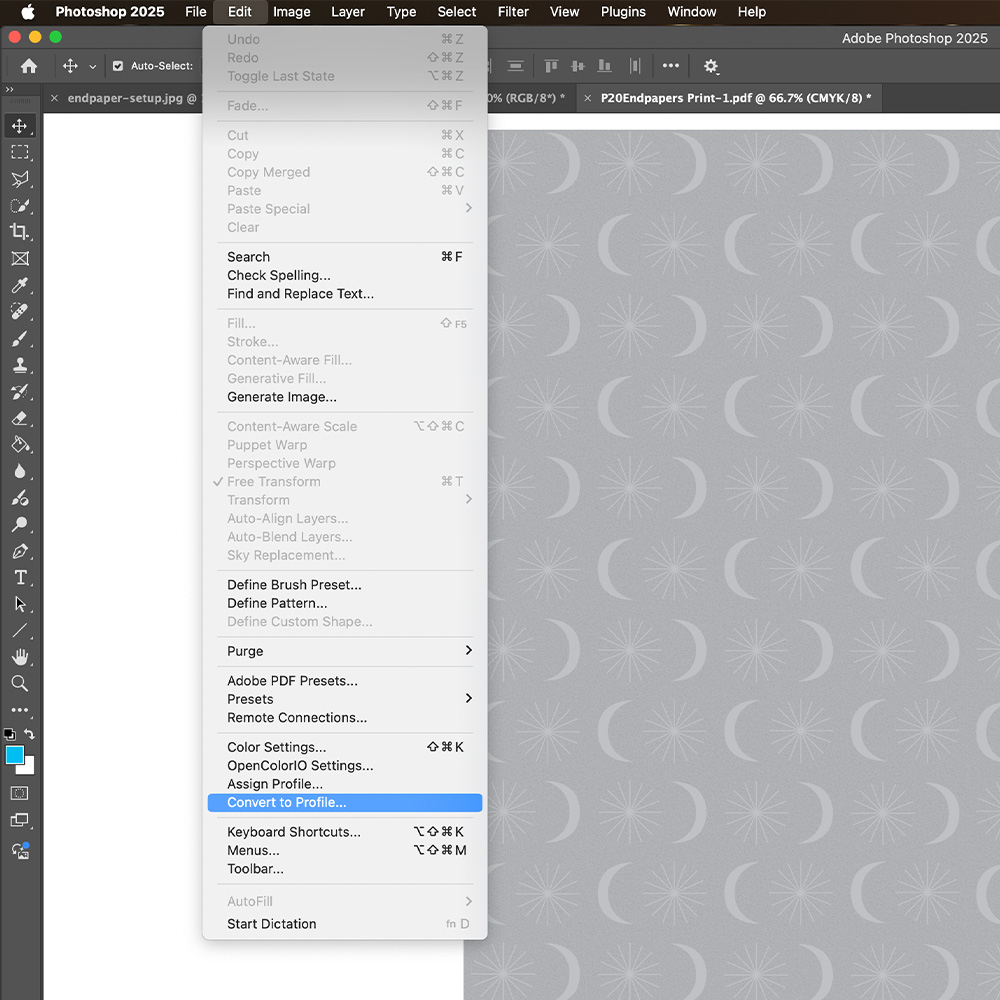
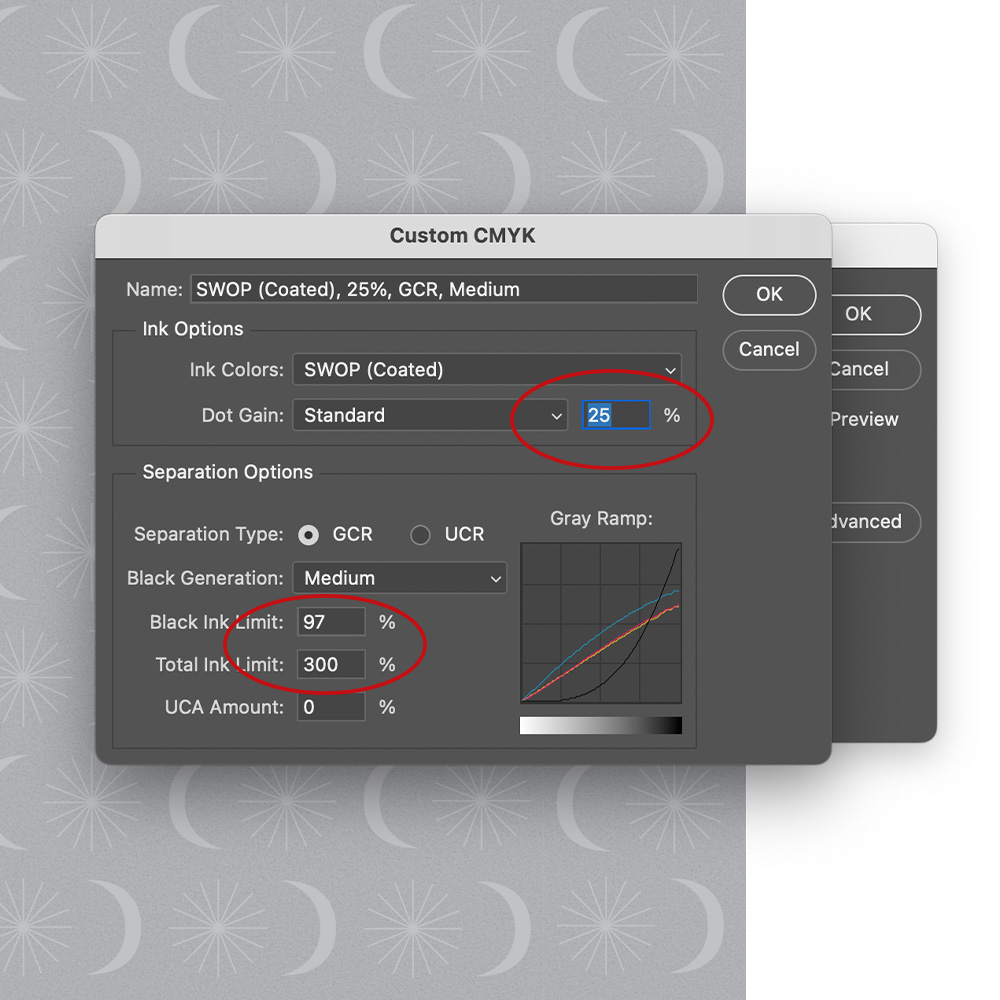
After exporting your PDF file to greyscale, you need to ensure the correct GRC profile is assigned to it. You can do this using Adobe Photoshop. Simply go to: Edit menu > Convert to profile > Custom CMYK option.
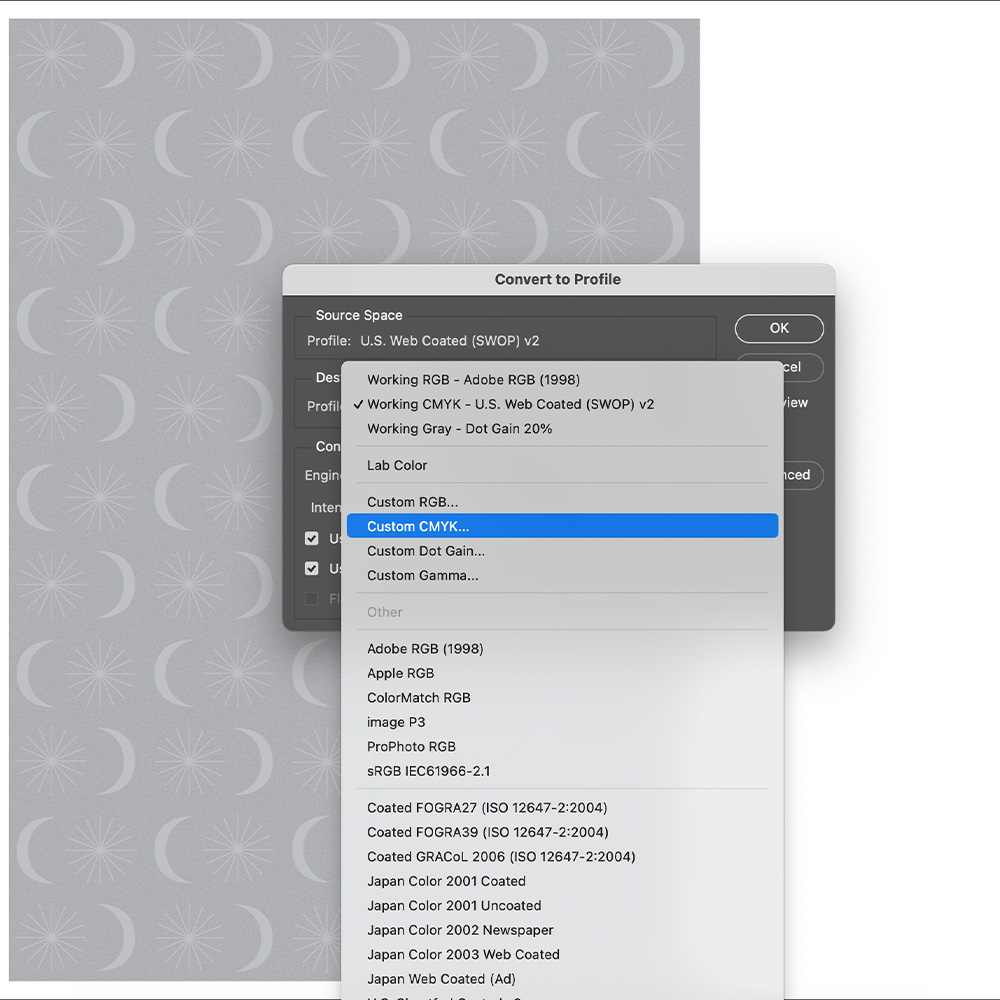
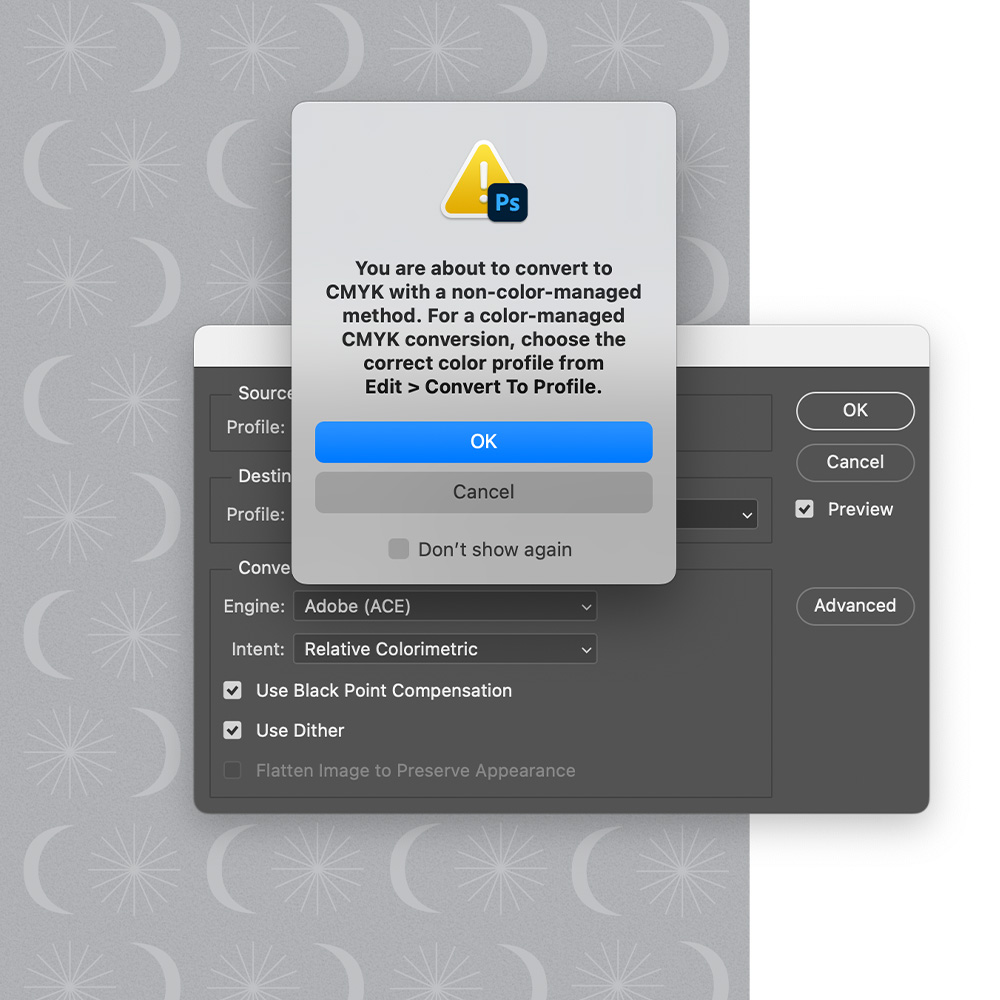
In the popup window click OK, this will allow the software to change the current colour profile. A new window will then open, in which you will apply the following recipe:
- Ink Colors: uncoated paper SWOP (Uncoated)
- Separation Type: GCR
- Black Generation: Heavy
- Black Ink limit: 97%
- Total Ink limit: 300% (default)
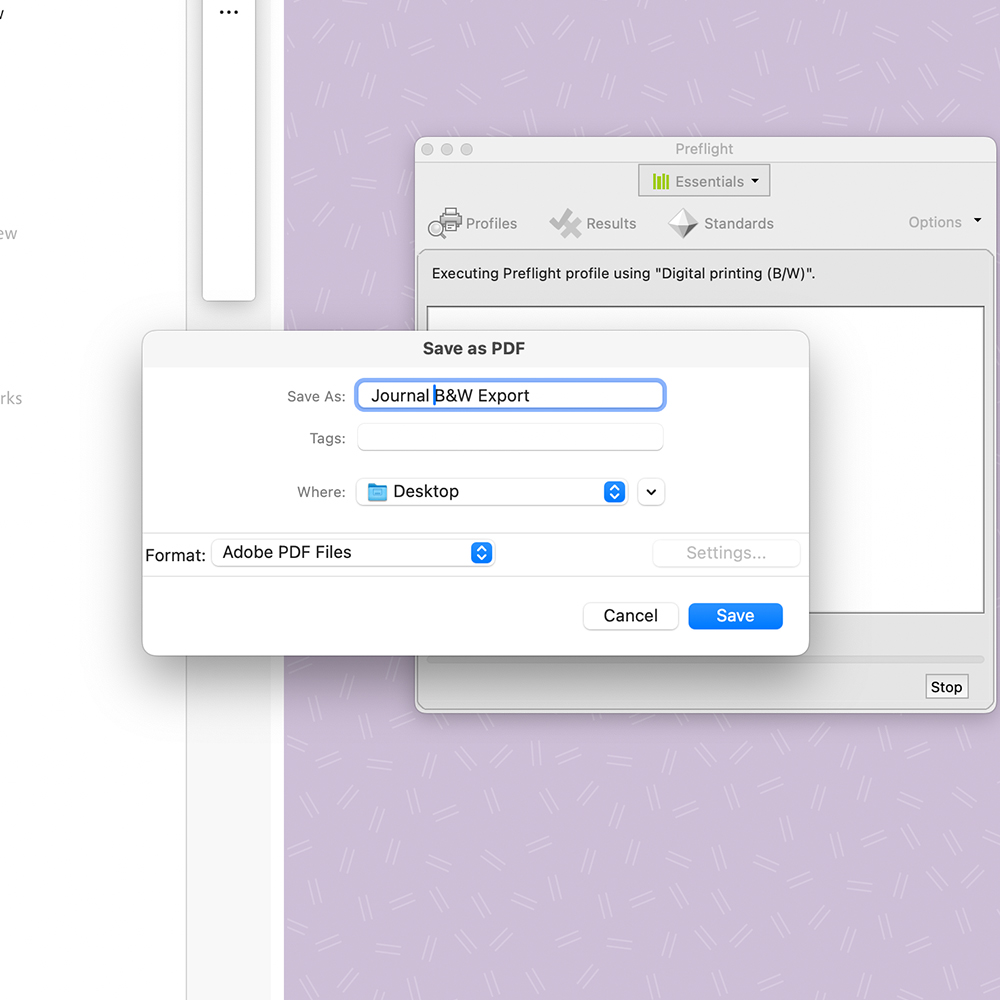
Converting a colour PDF file to Greyscale
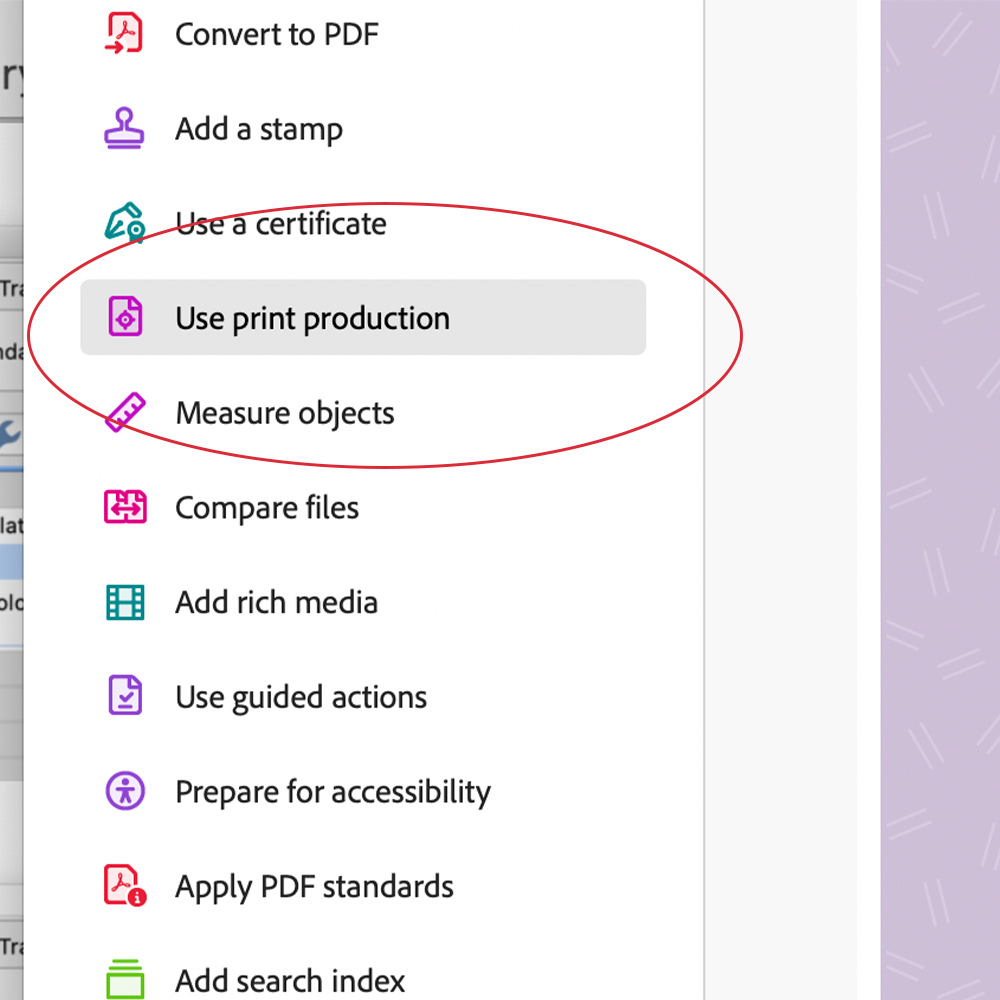
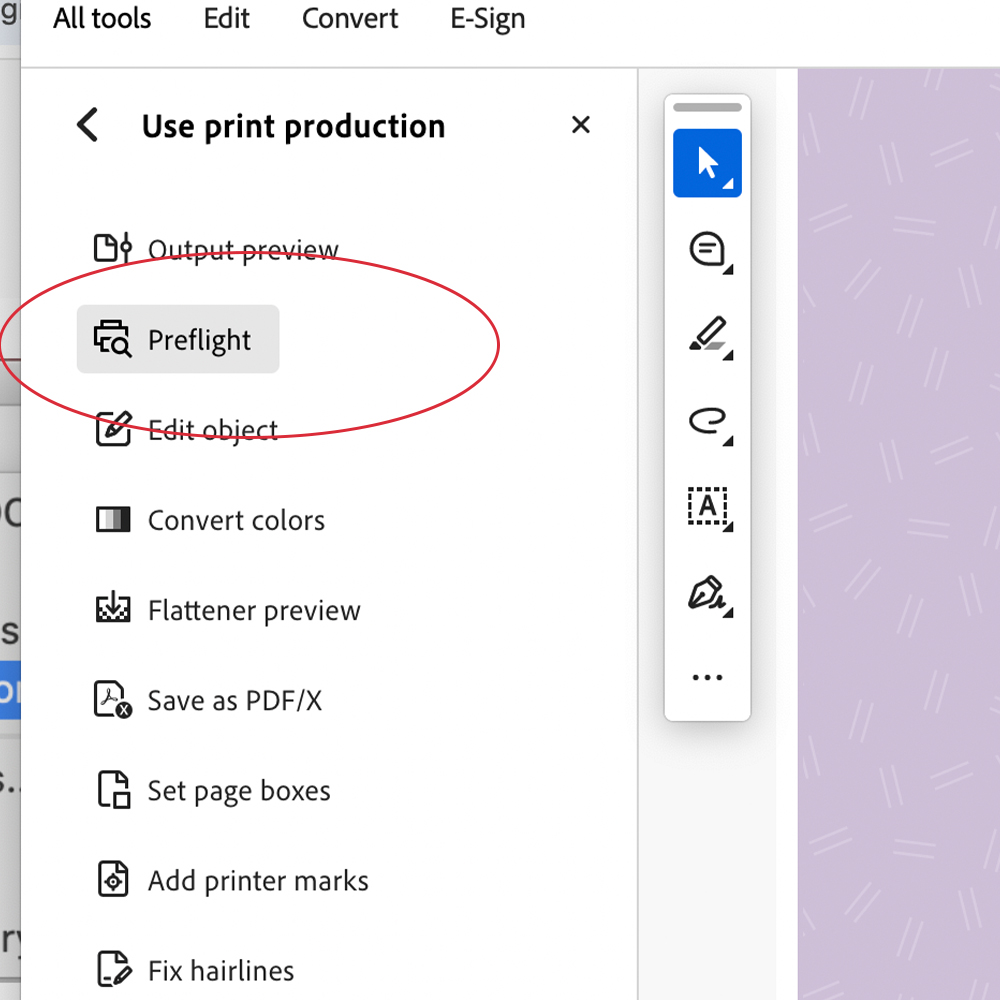
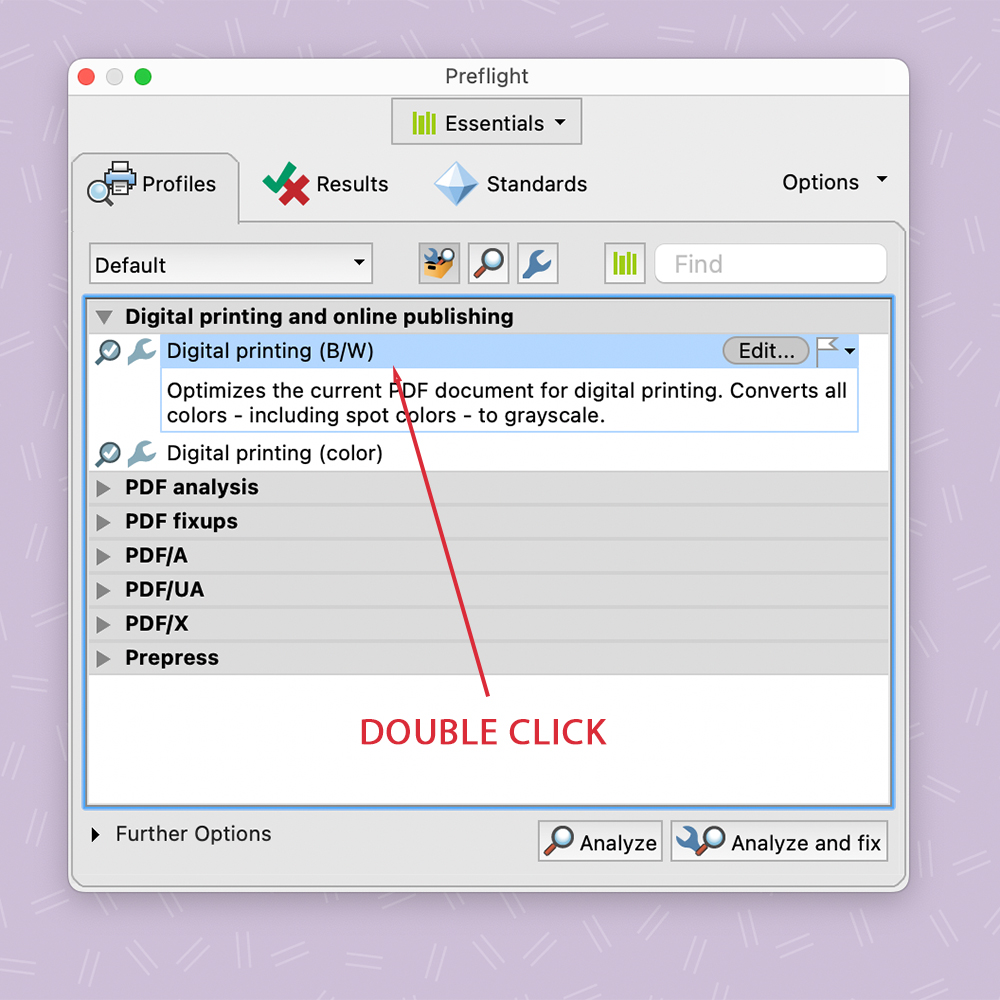
To convert your PDF files to greyscale simply open the file in Adobe Acrobat and navigate to the tools section on the left side.
Use print Production > Preflight > Digital printing and online publishing > Double click ‘Digital printing (B/W)’ > Save As
Checklist:
- Your file is exported to greyscale using Adobe illustrator or InDesign
- Your file has the correct custom CMYK Values
- Your file is exported to the correct print file type (Usually PDF)
- Your colour file is converted to Greyscale using Adobe Acrobat